Stage 1: Setup
The Setup stage is the first step in onboarding a site. All fundamental site data needed for the subsequent migration stages is captured here.
Overview
Clicking a site in the site overview opens the stage view. It is split into three areas:
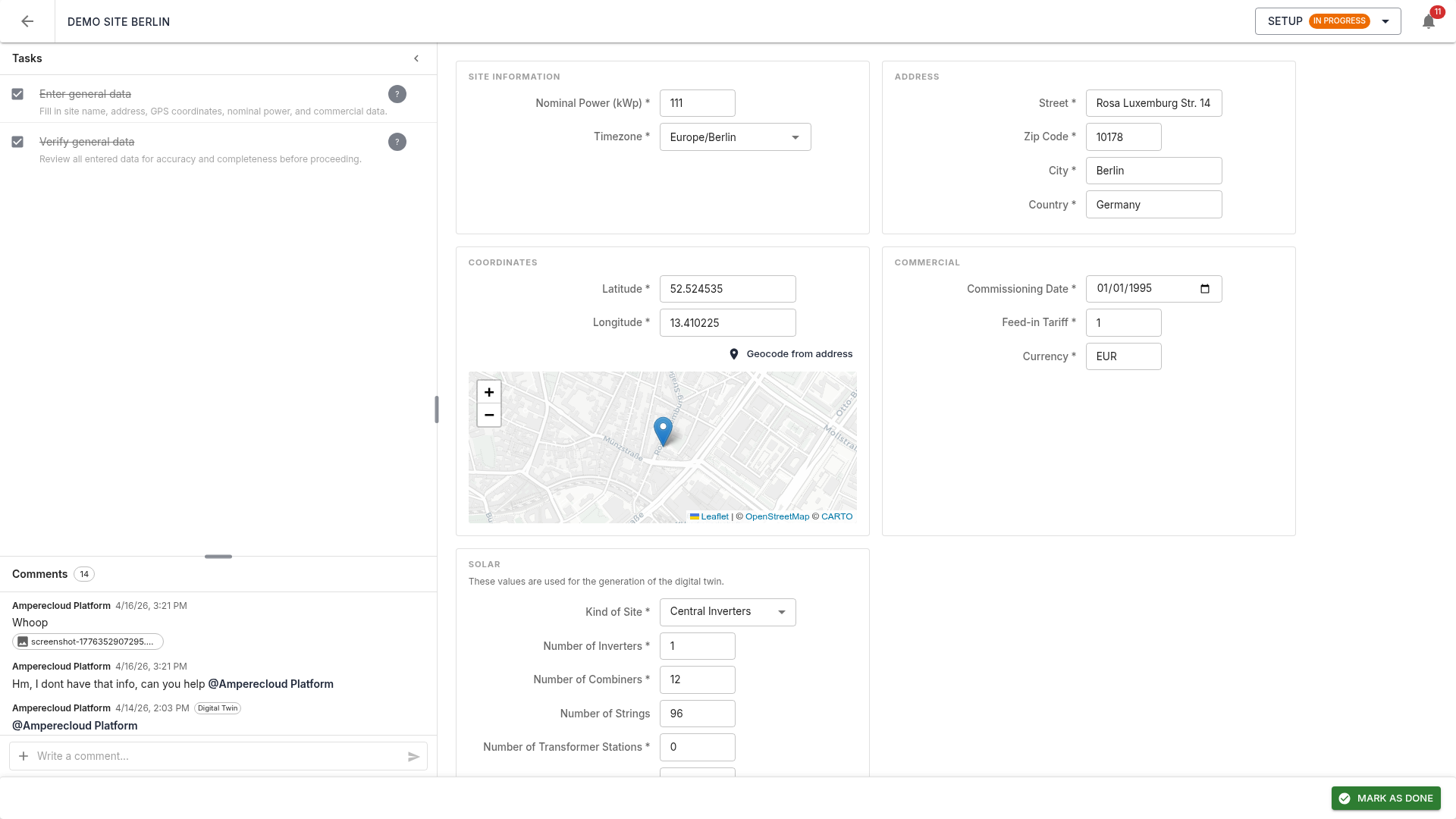
- Left: tasks and comments
- Right: site information (form)
- Bottom bar: stage status and action buttons
Panels are resizable by dragging the divider. The left sidebar can also be collapsed to give the form more space — the collapsed state is remembered per browser.
Fill in site data
The form is split into sections:
Site information
- Nominal power (kWp) *
- Timezone * (IANA,
e.g.
Europe/Berlin)
Address
- Street *
- Postcode *
- City *
- Country *
Coordinates
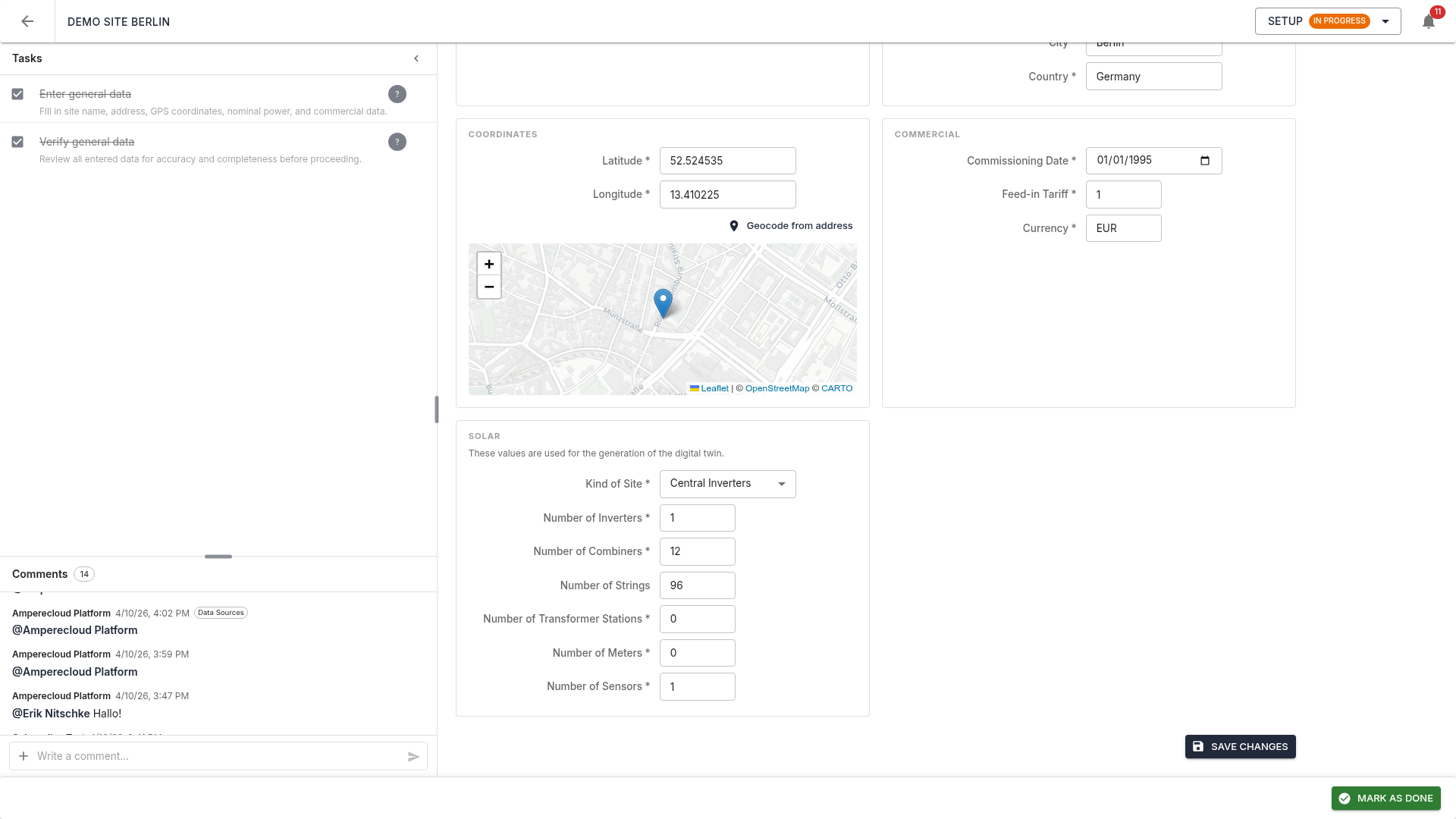
- Latitude * / Longitude *
- Geocode from address: automatically derives GPS from the address (OpenStreetMap/Nominatim)
- Map preview: interactive map with a draggable pin for manual adjustment
Commercial
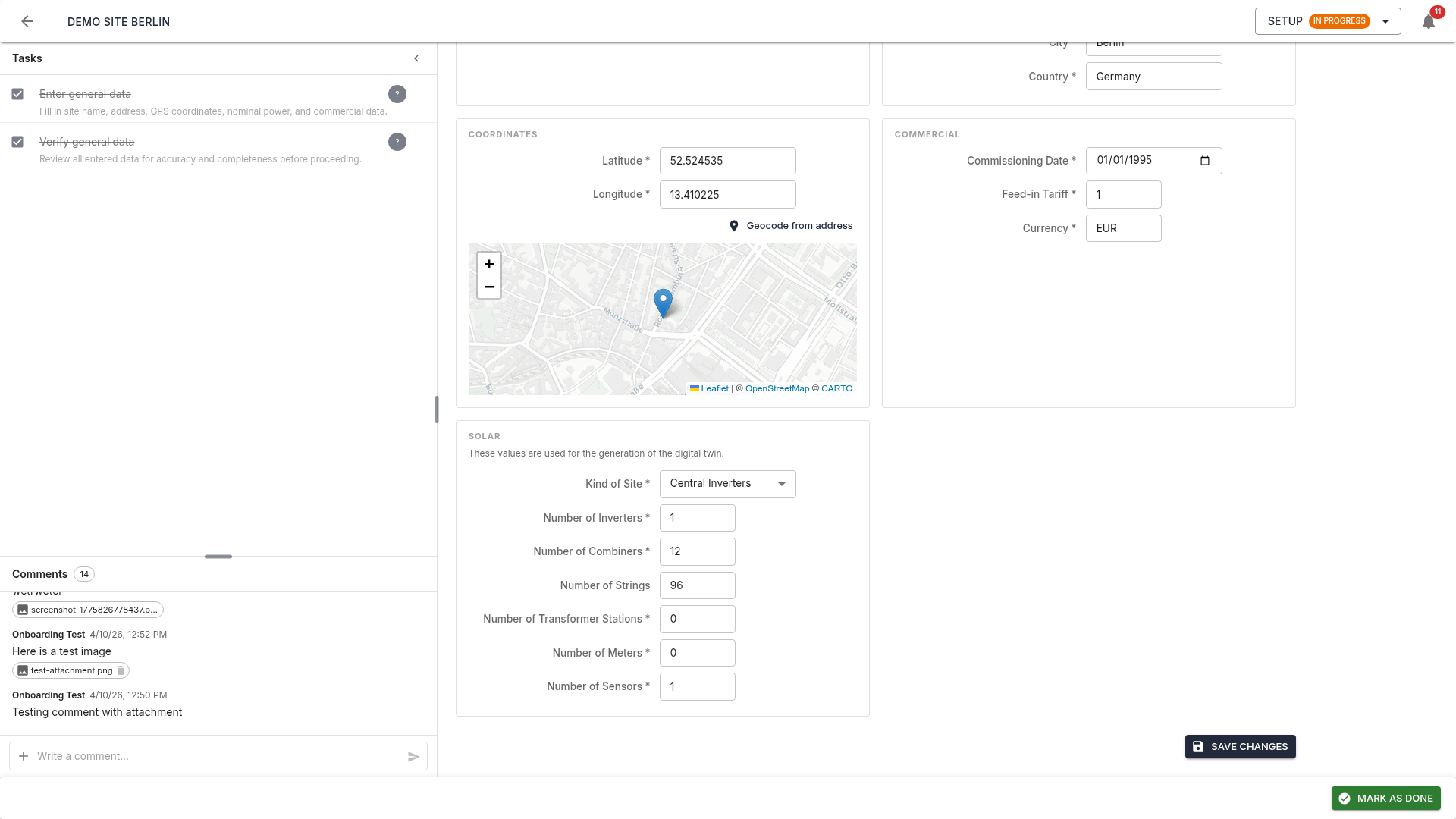
- Commissioning date *
- Feed-in tariff *
- Currency *
Plant-type specific fields (Solar)
For solar sites, extra fields are shown that are needed to generate the digital twin:
- Inverter type * (string or central)
- Number of inverters *
- Number of string combiners *
- Number of strings: optional
- Number of transformer stations * (0 if not present)
- Number of meters *
- Number of sensors *
Click “Save changes” when done.
Note: All fields marked with * are required. Data is synchronized with the Amperecloud platform when the stage is completed.
Tasks
The Setup stage has two tasks:
- Enter general data (Owner): fill in all form fields
- Verify general data: check accuracy
The second task is locked (shown with a padlock) and unlocks only after the first is done.
Click the checkbox to mark a task complete.
Comments
The comments panel below the task list allows you to leave notes. Comments are stage-specific and recorded in the audit log.
Mentions (@)
Via the “+” menu or by typing @ in the
comment field, project participants can be mentioned. Mentioned users
receive a notification; mentions are highlighted blue in the saved
comment.
Attachments, screenshots and screen recordings
The “+” menu also provides:
- Attach file: any file up to 10 MB; images and videos render in a preview modal
- Screenshot: captures the visible window and opens an editor with arrows, shapes, text, and freehand drawing for annotations
- Screen recording: record up to 2 minutes of screen (optional microphone)
Selected attachments appear as chips in the comment field and are only saved together with the comment.
Complete the stage
Once all tasks are done, click “Mark as done” in the bottom bar.
Completion dialog
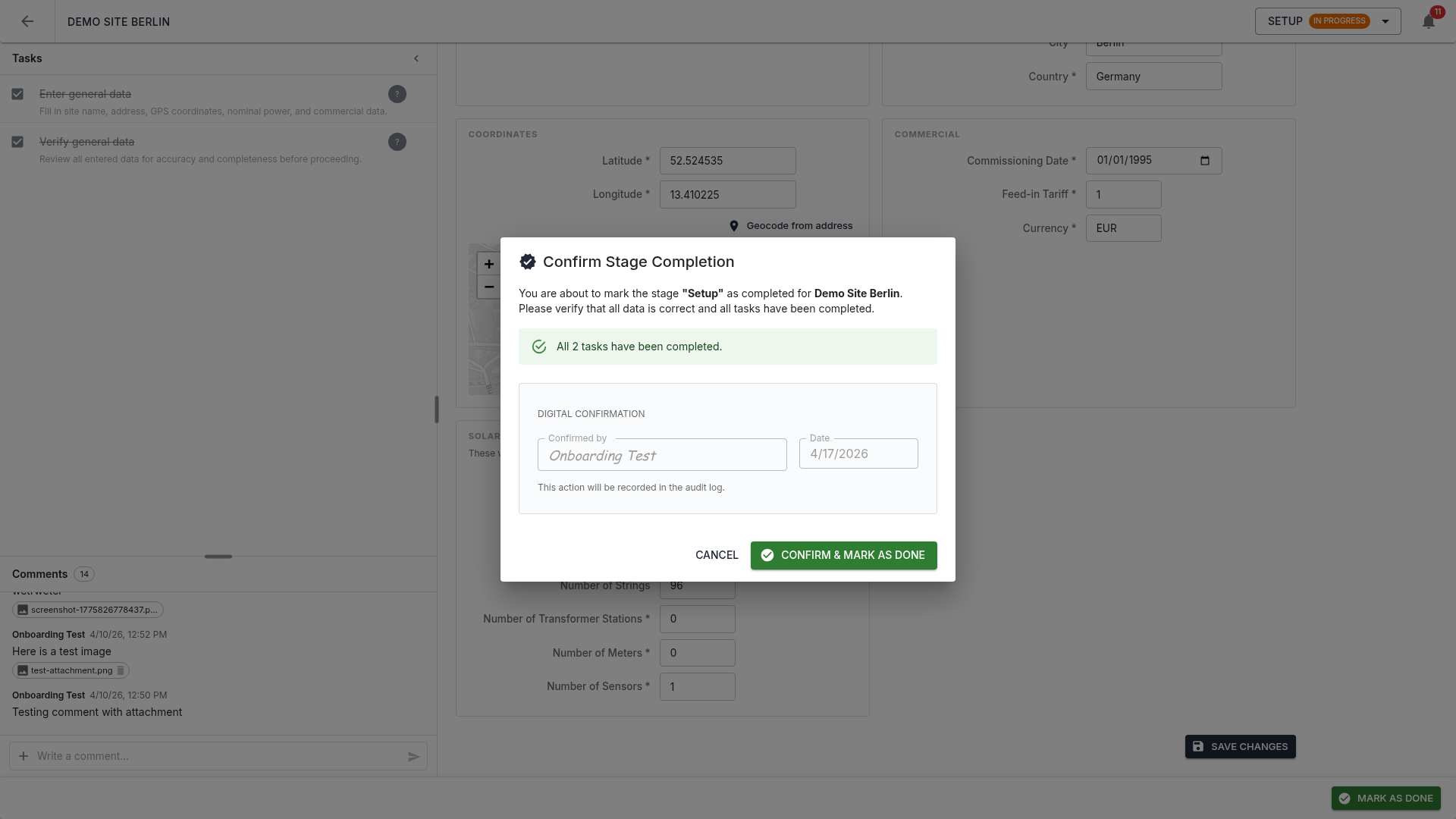
The dialog shows:
- Summary of task status
- Digital confirmation with the signed-in user’s name and date
- A note that the action is logged in the audit log
On completion, site data is synced to the Amperecloud platform. If the sync fails, the error is shown and the stage stays open.
Completed stage
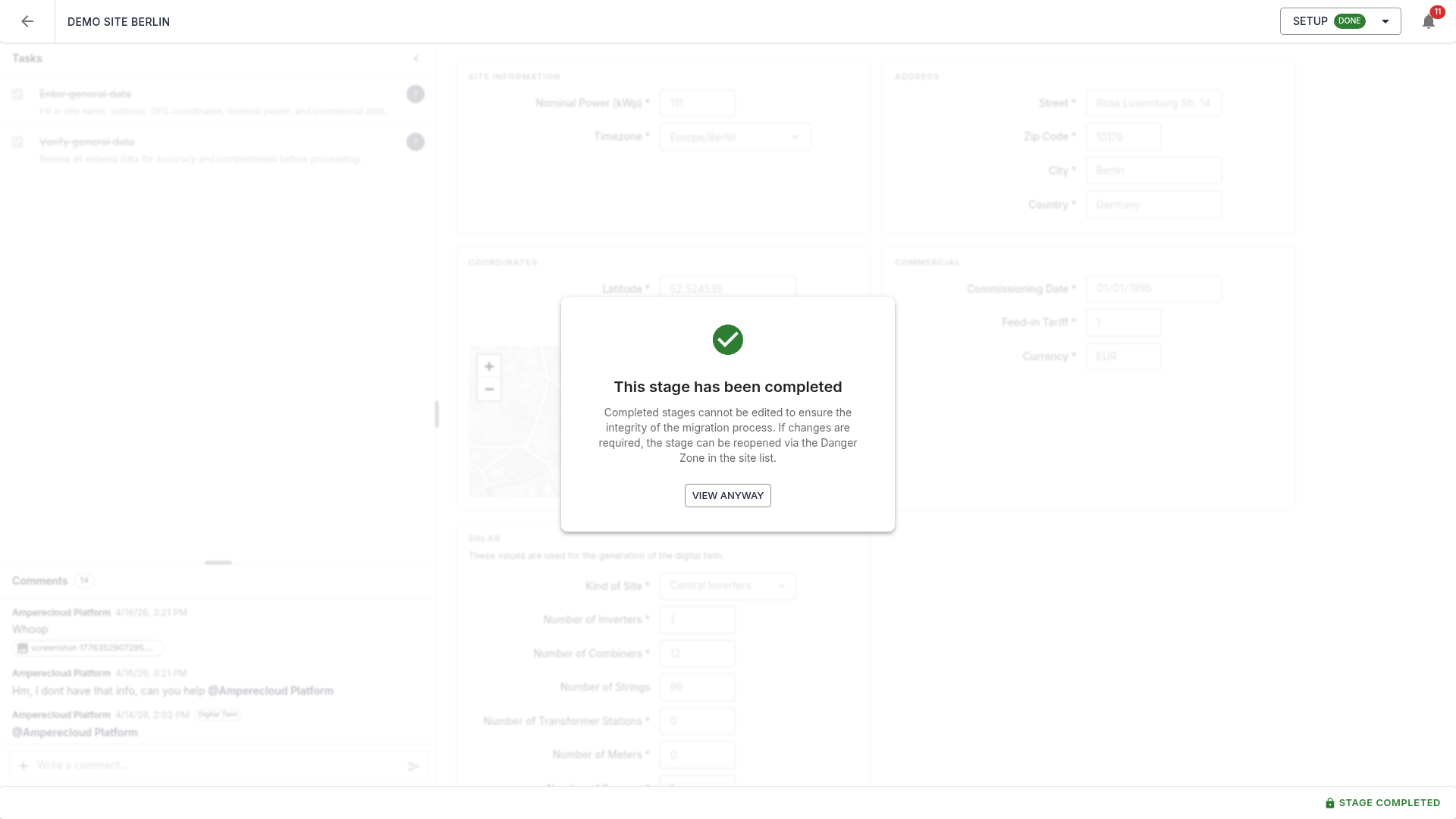
After completion the stage is locked. An overlay indicates this. “View anyway” opens the stage read-only.
Note: If changes are needed after completion, the stage can be reopened via the Danger Zone. This is limited to Amperecloud employees and requires an override authorization (reason + approver). All overrides are recorded in the audit log.
Next stage
After completion, Data Sources unlocks. → 03-Data-Sources